

Eclipse Plugin
Handle issues and change requests inside Eclipse
The Eclipse plugin brings your issues and change requests into the IDE. Open and edit issues, fetch and check out a change request's branch, create repositories and clone them, all without a browser.
1. Installation
| Item | Requirement |
|---|---|
| Eclipse | 2025-03 or newer, running on Java 21 |
| Java | 21 or newer — this is the runtime Eclipse itself starts with |
| Mylyn | Installed separately |
| EGit | Bundled with most Eclipse distributions |
Mylyn was dropped from the Eclipse packages starting with the 2022-06 release. A recent Eclipse download will not include it, so install it first: Help > Install New Software…, add the Mylyn update site, and install Mylyn Task List.
There are two ways to install. The Eclipse Marketplace route is the simpler one.
Eclipse Marketplace
Open Help > Eclipse Marketplace…, search for CollabOps, and click Install. Restart Eclipse when the install finishes.
Update site
If the Marketplace is unavailable, or you need a specific version, add the update site directly. Open Help > Install New Software…, click Add, and enter this location.
https://storage.googleapis.com/collabops-eclipse-update-site/Select CollabOps when it appears in the list, continue with Next, and restart Eclipse when the install finishes.
For machines without internet access we provide an offline archive separately. Ask your CollabOps contact for a copy.
2. Signing in
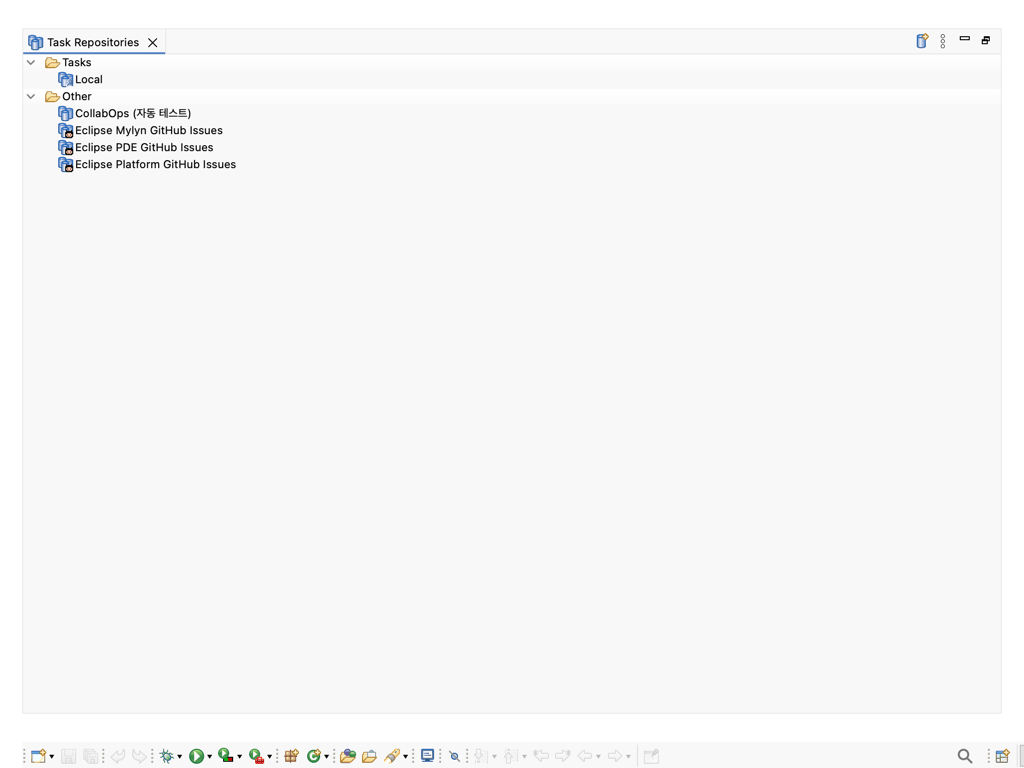
Open Window > Show View > Other… and pick Mylyn > Task Repositories. Right-click the empty area and choose Add Task Repository to see the connector list.
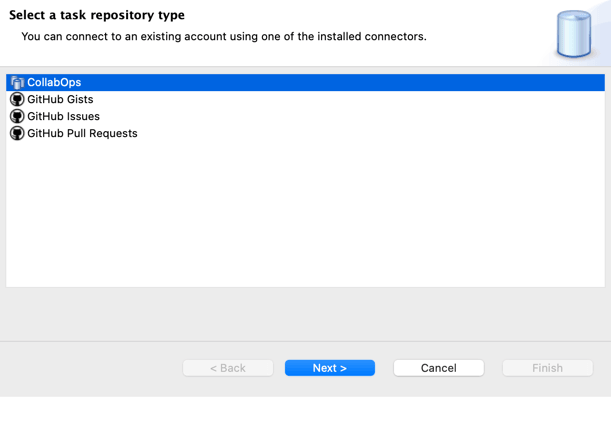
The next screen asks for four things.
| Field | Value |
|---|---|
| Server | https://collabops.ai (or your on-premise server address) |
| User ID | Your CollabOps account email |
| Password | Your account password — Save Password stores it in Eclipse's secure storage |
| Workspace | Your workspace URL — read it from the browser address bar (see below) |
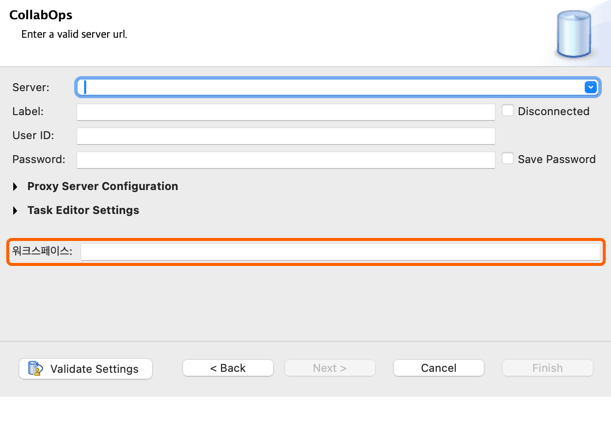
The workspace URL is the part that comes right after collabops.ai/ when you open CollabOps in a browser.
https://collabops.ai/acme-corp/issues
                     ~~~~~~~~~
                     enter this part
Use the URL form (acme-corp), not the display name you see on screen (Acme Inc.). It was set when the workspace was created, and you can also find it in workspace settings. Finish stays disabled while this field is empty.
Validate Settings signs in for real and reports the result. Once it passes, click Finish.
3. The views
| View | Location | Purpose |
|---|---|---|
| Task List | Mylyn > Task List | Your issues and change requests |
| Task Repositories | Mylyn > Task Repositories | Server registration and connection checks |
| Task editor | Double-click an item | Edit issues, read change requests |
| Repositories | CollabOps > Repositories | Create, rename, delete and clone repositories |
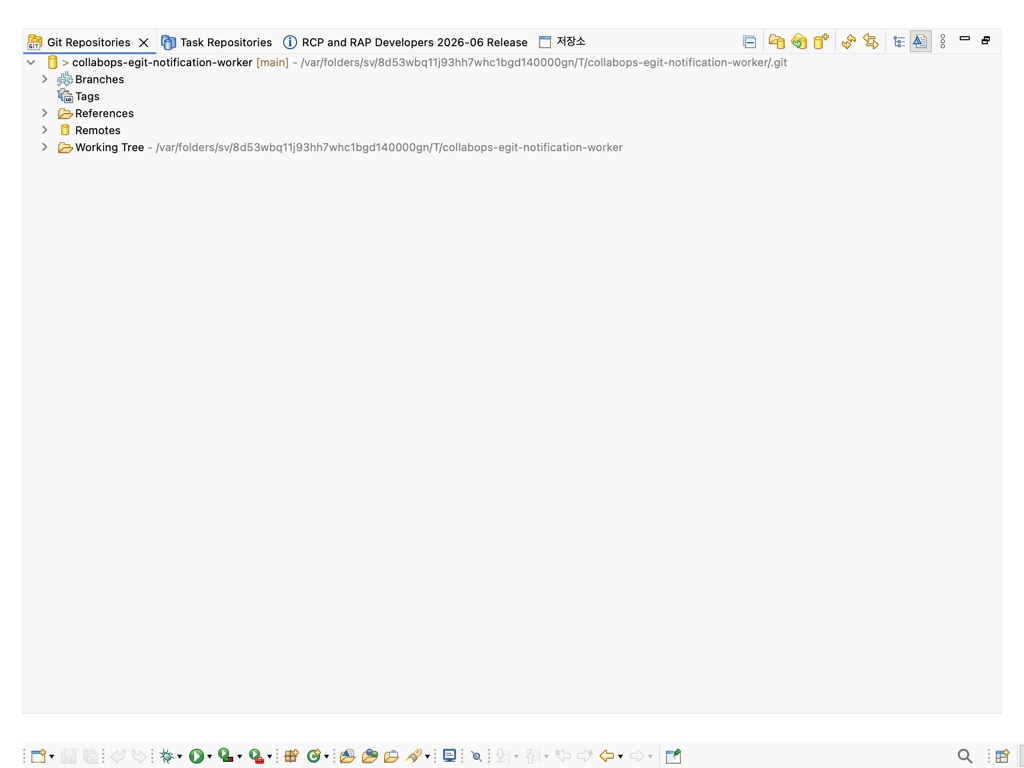
| Git Repositories | Git > Git Repositories | Cloned repositories (EGit) |
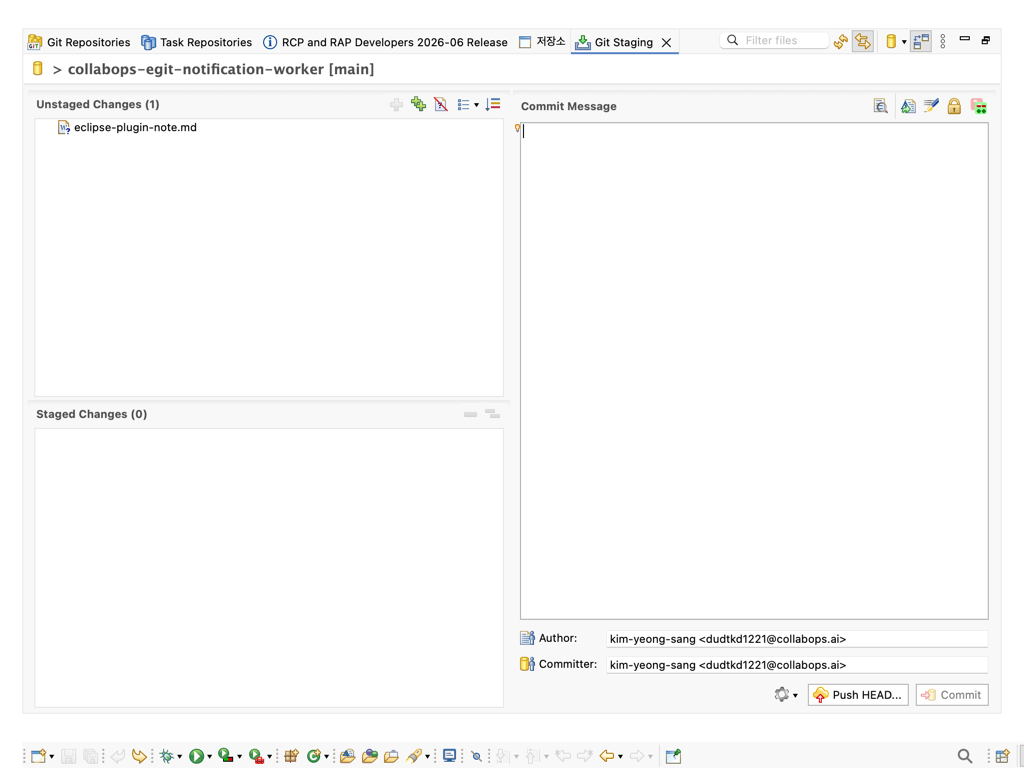
| Git Staging | Git > Git Staging | Commit and push (EGit) |
4. Browsing
Registering the server does not populate anything on its own — a query decides what gets pulled in. In the Task List, right-click and choose New > Query, select the CollabOps repository, then pick what to fetch.
| Query | What it returns |
|---|---|
| My issues | Issues assigned to you in the current workspace |
| My change requests | Change requests you authored or were added to as a reviewer |
Create both and issues and change requests share one view. The server only needs to be registered once.
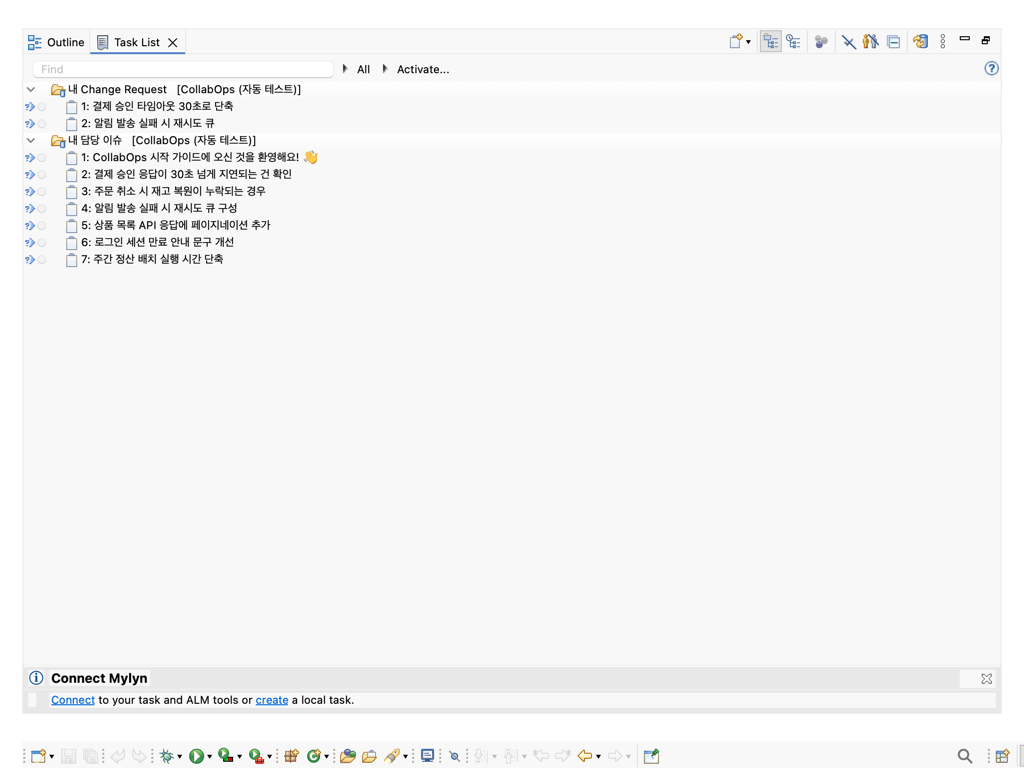
Detail view
Double-click an item to open the editor. Issues show title, description, status, priority and comments; change requests show branch direction, repository, conflict state and the discussion.
5. Editing
In the issue editor you can change title, description, status and priority, and leave a comment. Submit sends the changes to the server. Create new issues with right-click > New > Task in the Task List.
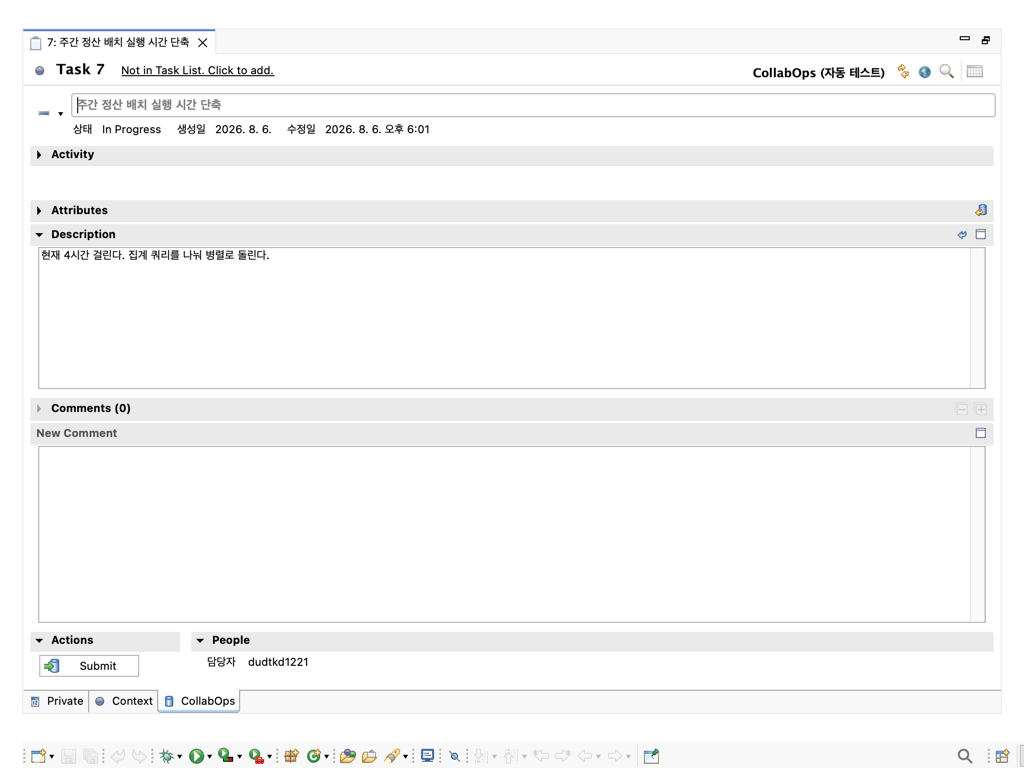
Descriptions travel as Markdown. Formatting written on the web shows up here, and edits made in the IDE come back with the same formatting.
## What I checked

- The happy path **still works**
- Timeouts fall through to `retry`

> Revisit the retry count once we have metrics
6. Taking action
Change request titles and descriptions are editable here too. Change them in the editor and press Submit. State changes like merge and close live in the list, under right-click > CollabOps CR.
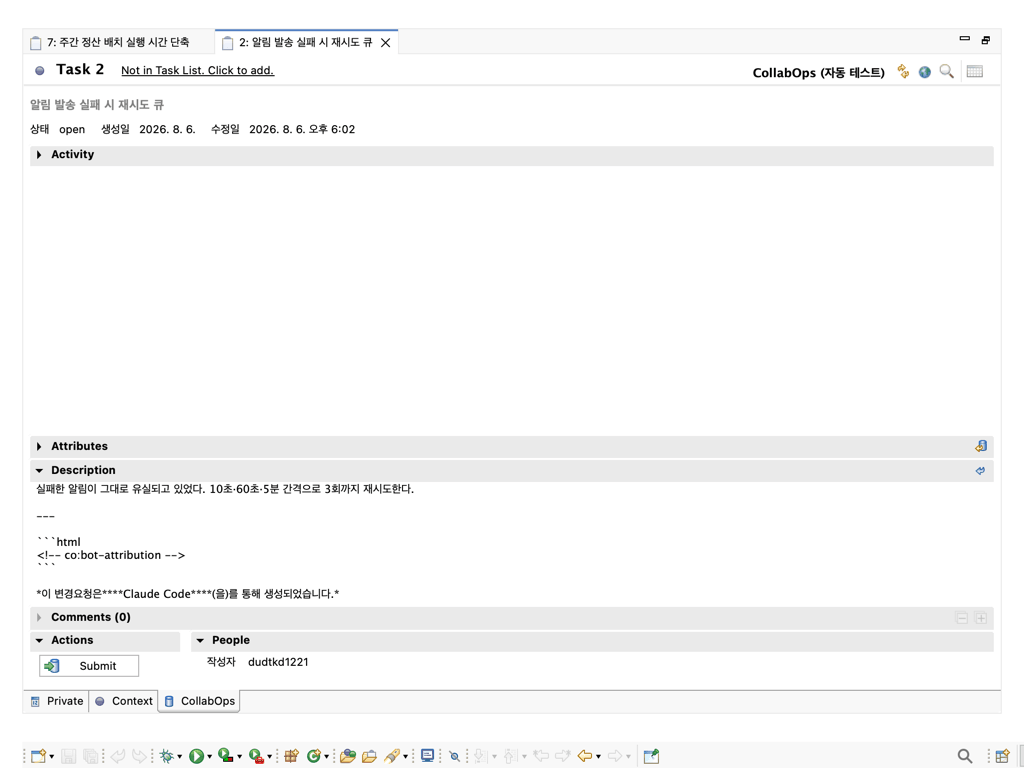
| Action | What it does |
|---|---|
| Fetch branch | Pulls the change request's source branch locally |
| Checkout branch | Switches your working tree to that branch |
| Merge | Merges after a confirmation dialog |
| Close | Closes the change request without merging |
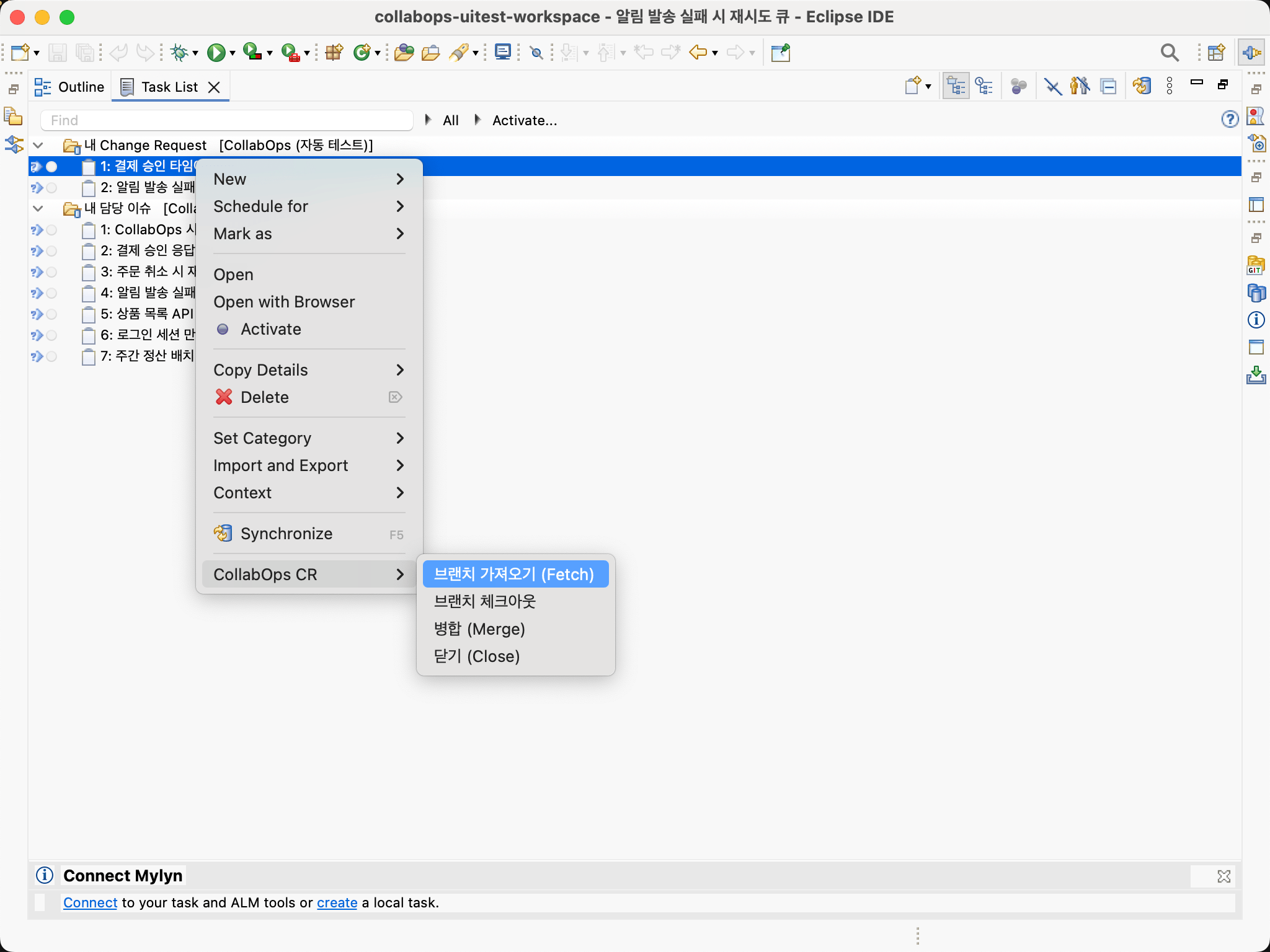
Fetch and checkout require the repository to be cloned in Eclipse first.
Managing repositories
Open Window > Show View > Other… and pick CollabOps > Repositories. Every repository in the workspace is listed with its visibility, open change request count and default branch. The toolbar covers create, rename and delete. Create change request opens a change request on the selected repository, with source and target branches picked from a list.
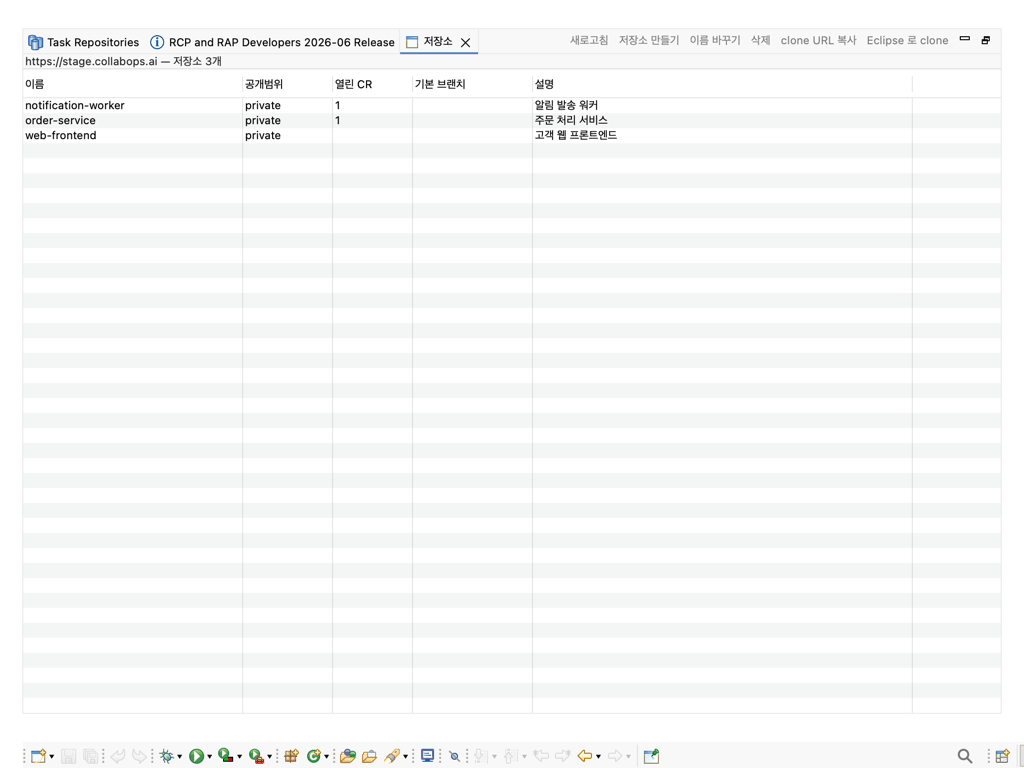
Deletion cannot be undone. You have to retype the repository name before it goes through.
7. Git
CollabOps repositories speak the standard Git protocol, so EGit — the Git client bundled with Eclipse — works against them directly. Double-click a repository to copy its clone URL, or use the Clone with Eclipse toolbar action to open the clone wizard with the URL filled in.
Clone URLs use SSH. Register your public key in CollabOps account settings first.
Commits and pushes go through the Git Staging view. Stage your changes, write a message, and press Commit and Push.
8. Notes
Task activation
Activating an issue makes Eclipse remember which files you had open, and restores them when you return to that issue later. This comes from Mylyn.
Whitespace around formatting
The server trims leading and trailing whitespace when it saves, so spaces next to bold, code or link formatting can disappear. The web editor behaves the same way.
Not supported
Code review — fetch the branch and read it locally, then comment on the web
Commenting on change requests — handled on the web (editing title and description works)
Deleting change requests — use Close to end one
Viewing and triggering pipelines
Code signing
The plugin is not code-signed yet, so Eclipse shows an unsigned content warning during installation. It does not affect how the plugin works.
9. Troubleshooting
| Symptom | What to check |
|---|---|
| CollabOps is missing from the connector list | Confirm Mylyn is installed and that you restarted Eclipse afterwards. |
| Finish is disabled | The Workspace field is empty. |
| Sign-in fails | Check that the server URL includes https, and that the email and password match your web login. |
| The list shows an error | Most likely an expired session. Re-check with Validate Settings in Task Repositories. |
| The list is empty | Either no query was created, or nothing in that workspace is assigned to you. |
| Clone fails | Check that your SSH public key is registered on your account. |
| On-premise server will not connect | Check the server address. With a private certificate, it has to be trusted by the JVM Eclipse runs on. |
If none of that helps, send your Eclipse version and the contents of the Error Log view to your CollabOps contact.