

Quick Start
Get started with CollabOps in 5 minutes
1. Create an Account
Create an account at collabops.ai.
2. Set Up a Workspace
After logging in, create a workspace. A workspace is a space that holds all of your team's projects and settings.
3. Create Your First Project
Click the New Project button on the workspace dashboard to create a project.
4. Run Your First Build
Once your repository is connected to the project, add a pipeline.yaml file to the repository root and push — the build runs automatically. Below is a minimal example for a JDK 17 + Maven + Spring Boot 3.x project.
name: hello-build
triggers:
  push:
    branches: [main]
jobs:
  build:
    phase: build
    steps:
      - name: checkout
        uses: "collabops/checkout@v2"
        with:
          repo-url: "https://<collabops-host>/<workspace>/<repository>.git"
      - name: maven-build
        # In air-gapped environments, replace with your internal Harbor mirror (e.g. <harbor-host>/library/maven:...)
        image: maven:3.9-eclipse-temurin-17
        run: |
          cd /workspace/source  # cloned by checkout@v2
          mvn -B -ntp -s settings.xml package
In an air-gapped environment using an internal Nexus mirror, place a settings.xml at the repository root so Maven pulls dependencies from the mirror.
<?xml version="1.0" encoding="UTF-8"?>
<settings xmlns="http://maven.apache.org/SETTINGS/1.2.0">
  <mirrors>
    <mirror>
      <id>nexus-internal</id>
      <name>Internal Nexus</name>
      <url>https://<nexus-host>/repository/maven-public</url>
      <mirrorOf>*</mirrorOf>
    </mirror>
  </mirrors>
</settings>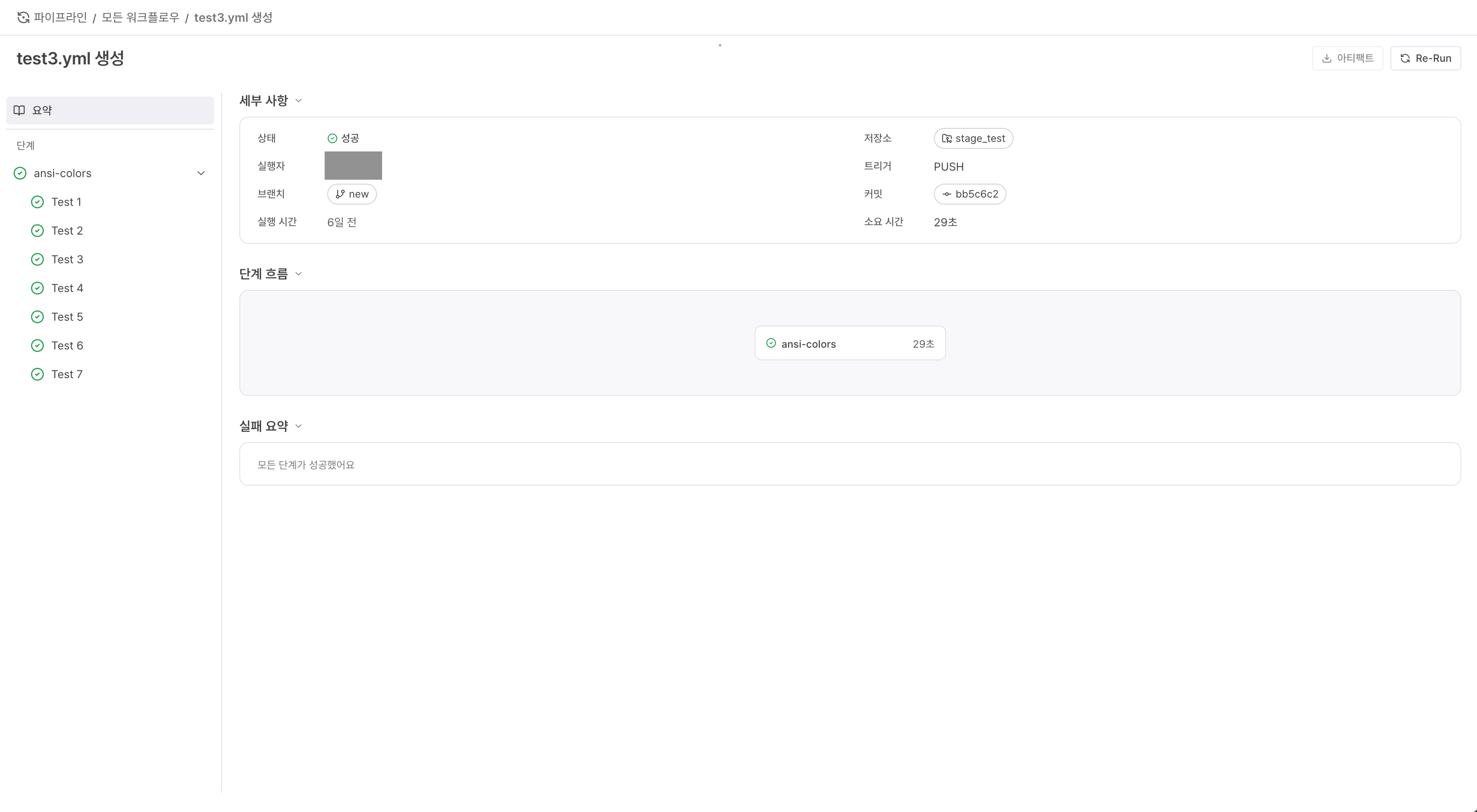
In air-gapped environments without external internet access, Maven Central and Docker Hub are unreachable. Route all dependencies and container images through your internal Nexus / Harbor mirror.
See the CI/CD guide for workflow syntax and more examples.
5. Invite Team Members
You can invite team members from the project settings. Enter their email addresses and an invitation link will be sent.
Next Steps
Issue Management — How to create and manage issues
Change Request — Getting started with code review