

Force password reset
Issuing a one-time temporary password to restore a user's sign-in
Force password reset is the core feature of the Operator Console. When a user forgets their password, the operator issues a temporary password so the user can sign in again. It is the standard way to recover a password in an on-premise environment that has no mail server.
Reset procedure
In user management, find the target user and open their detail screen.
In the ‘Force password reset’ area at the bottom of the detail screen, click the ‘Reset password’ button.
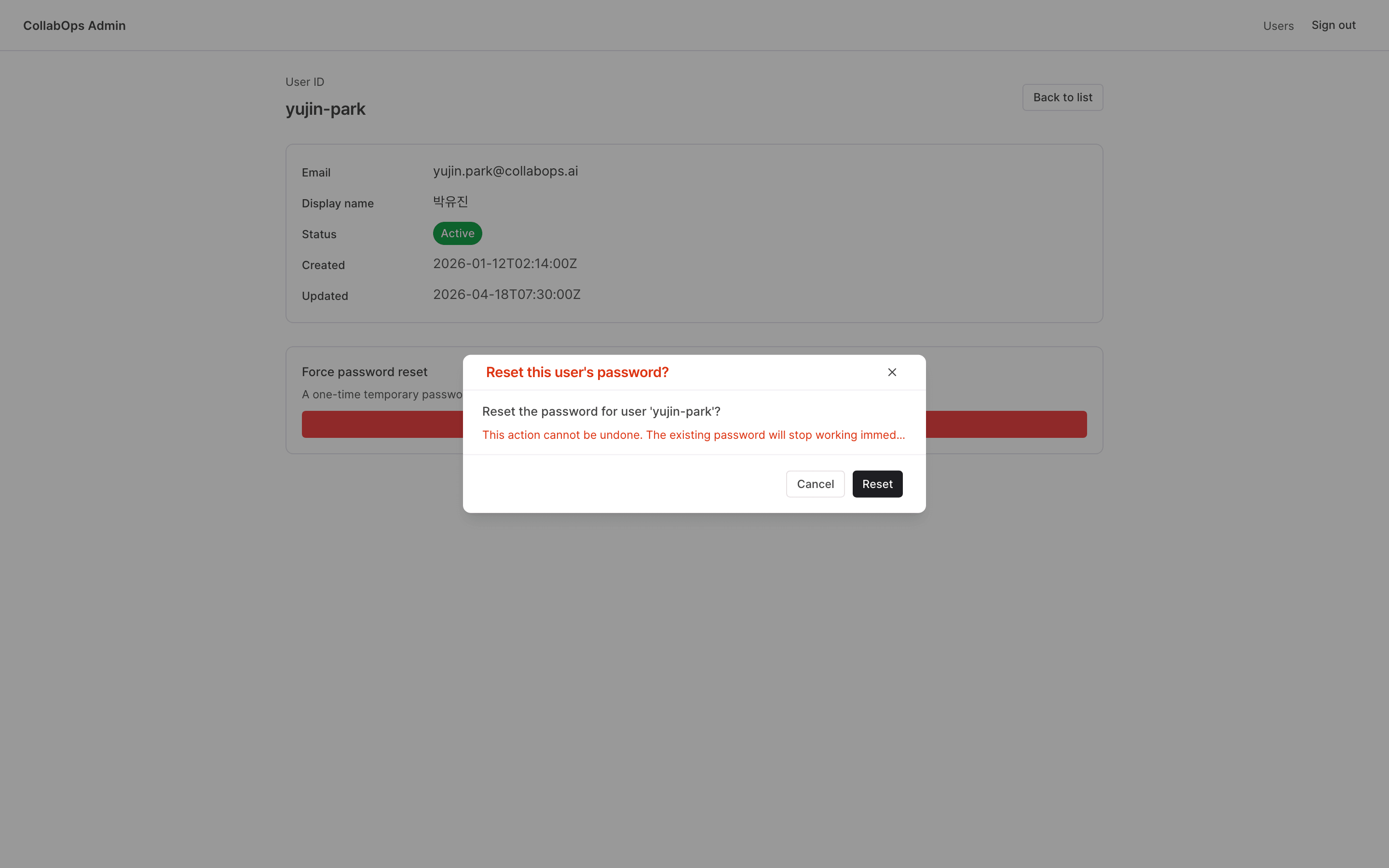
In the confirmation dialog, verify that the target user is correct and click ‘Reset’.
The generated temporary password is shown in the result dialog.
Delivering the temporary password
The temporary password is shown in the result dialog only once. Once you close the dialog, you cannot see it again. Select the displayed value, copy it, and deliver it to the target user through a secure channel.
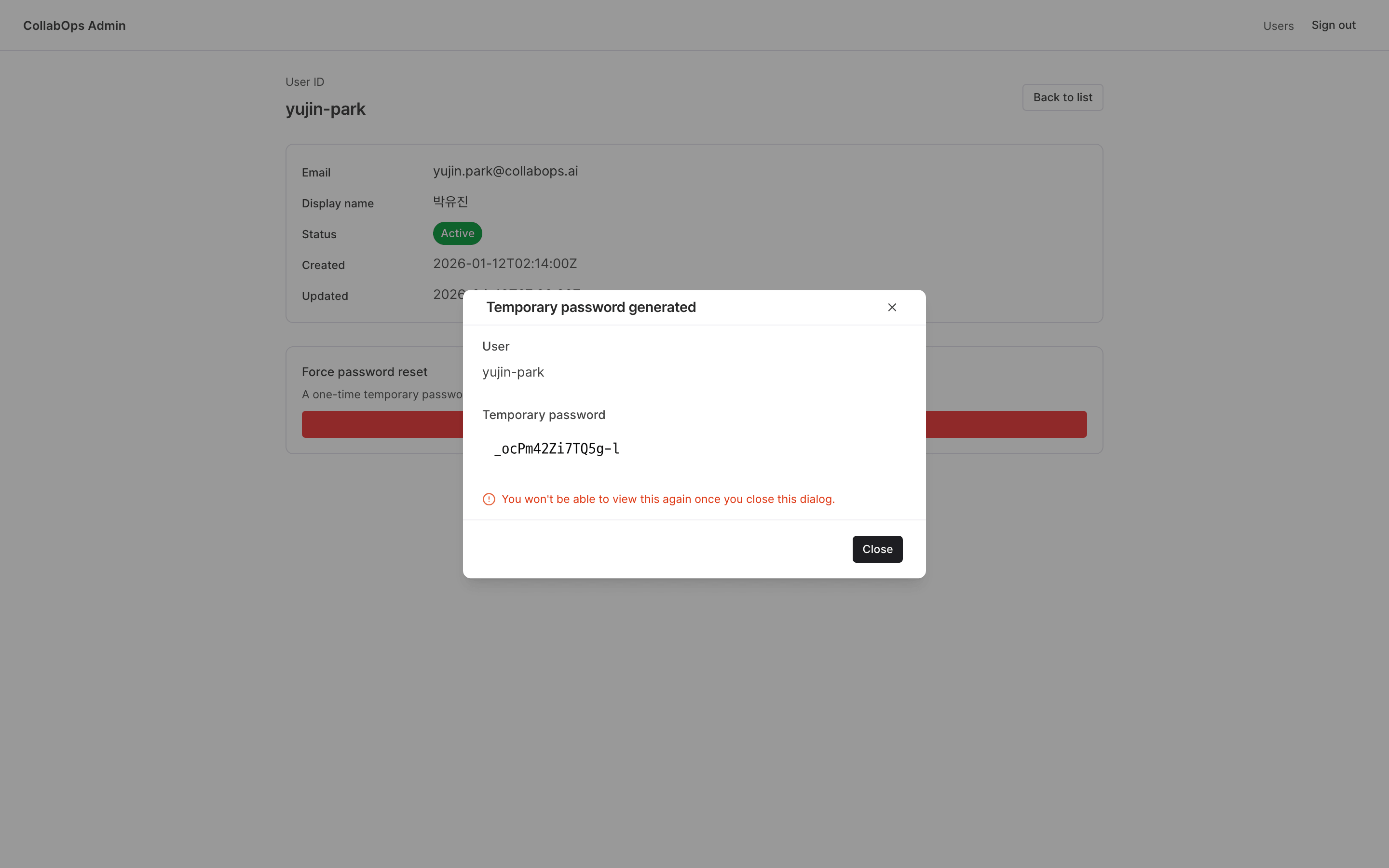
For security, the temporary password is not stored anywhere and does not appear in server logs. Be sure to move it somewhere safe before closing the result dialog. A copy button is intentionally not provided because it does not work in some on-premise environments — select the displayed text and copy it manually.
What happens after a reset
The existing password is invalidated immediately and can no longer be used to sign in.
The user can sign in with the temporary password they were given.
After signing in, advise the user to change it to a new password themselves.
Eligible accounts
Only accounts in the Active or Pending status can be reset. Accounts in any other status, such as Deleted, have the reset request rejected.
This action cannot be undone. The existing password stops working the moment the reset completes, so confirm the target user in the confirmation dialog before proceeding.