

Creating and Managing Milestones
How to create a milestone, edit its name, description, and dates, delete it, and reorder the list
From a project's Overview tab you can create new milestones and edit or delete their name, description, and dates at any time.
1) Click the New milestone button below the milestone list to open the create dialog. Enter a name (required), an optional description, and start/due dates, then click Create milestone to add it.
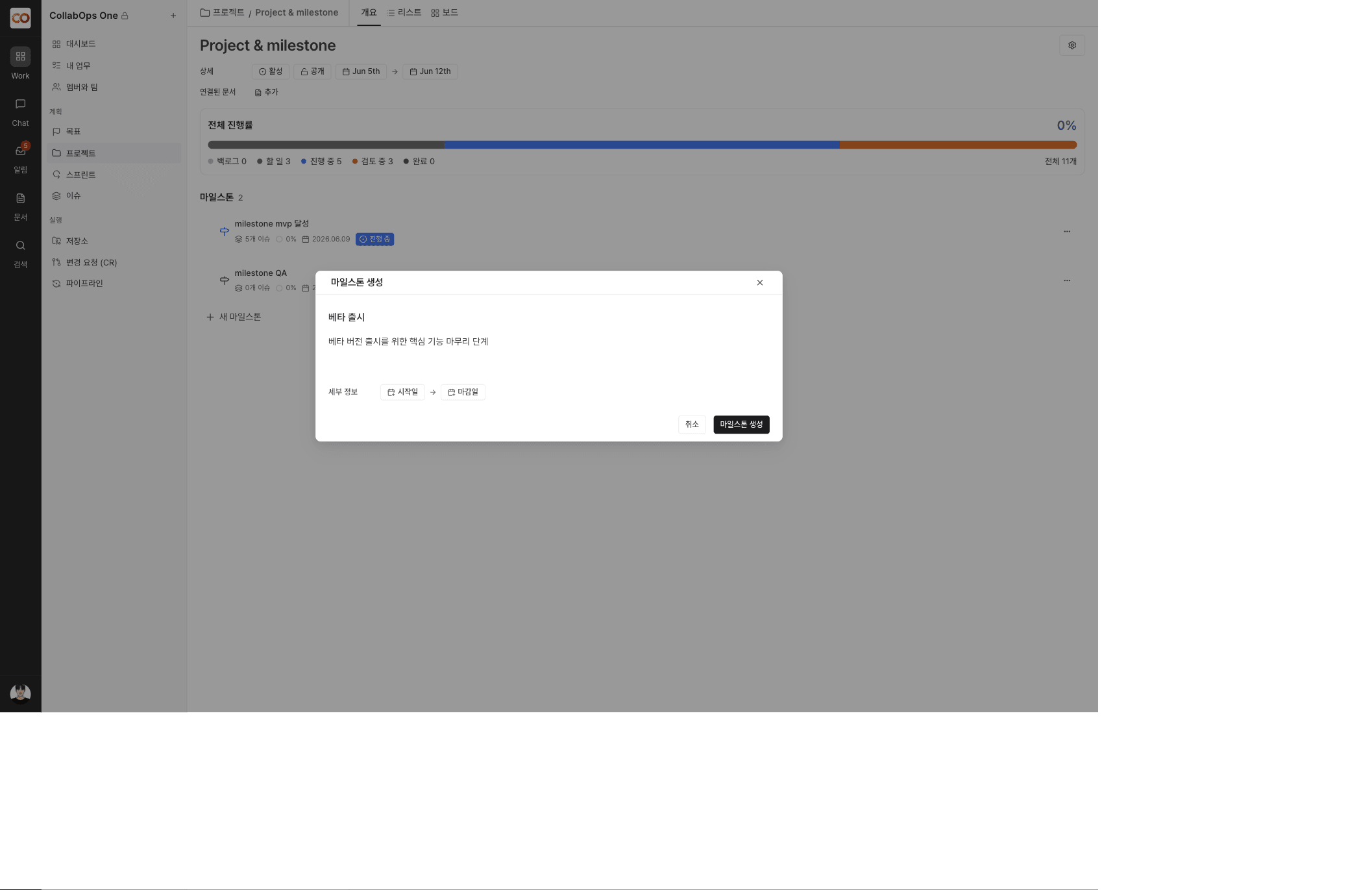
2) A name must be unique within the project. If you set dates, the due date must be on or after the start date and fall within the project's period.
3) Open the ··· actions menu at the far right of a milestone row to edit or delete the milestone.
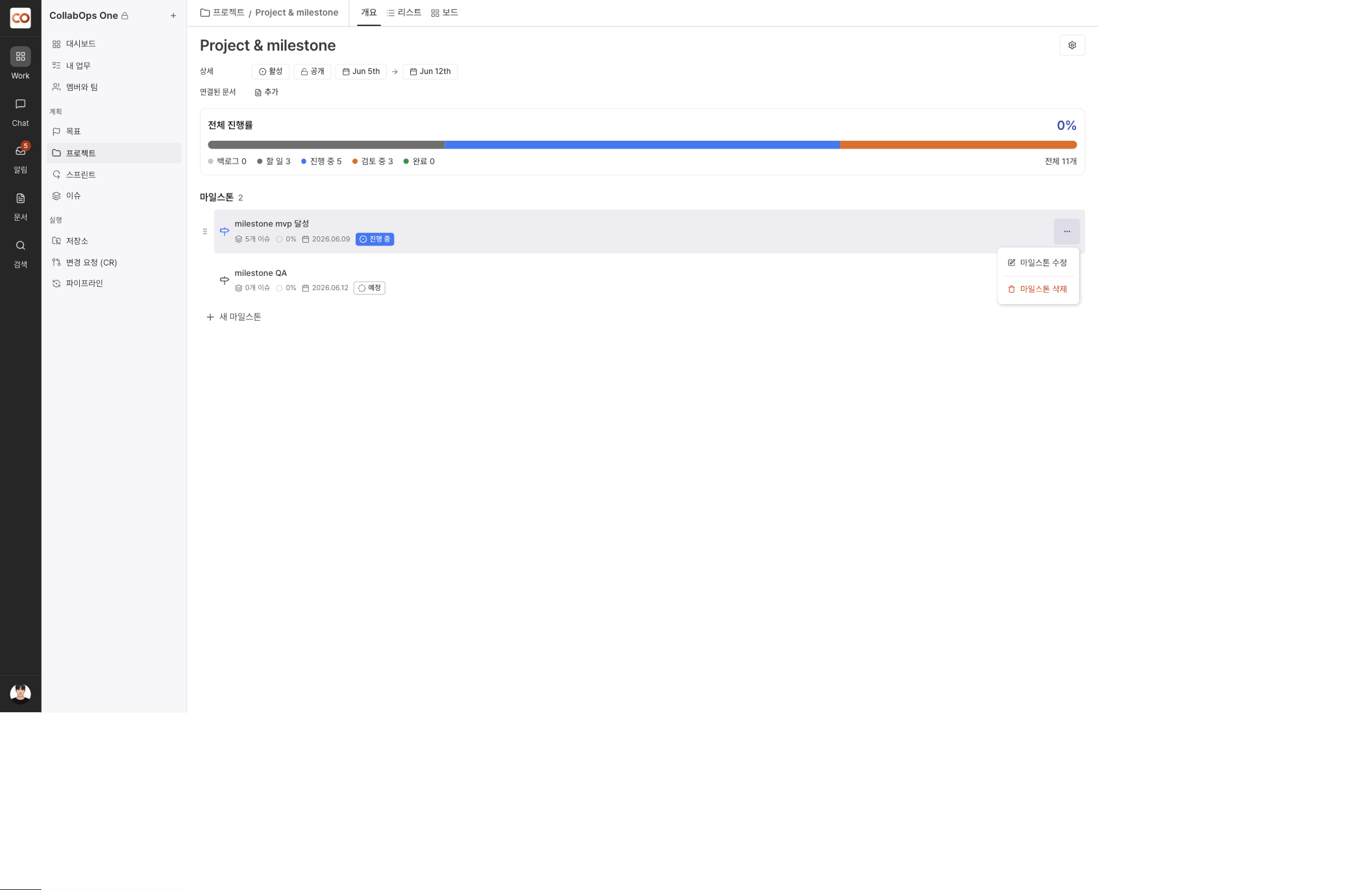
Deleting a milestone does not delete its issues. Only the link between the issues and the milestone is removed; the issues remain in the project.
4) Drag the reorder handle on the left of a milestone row to change its position in the list. The order you set is saved and kept the next time you open the view.