

Viewing a Milestone's Issues
How to click a milestone to view only that milestone's issues in the list
Clicking a milestone row on the Overview tab switches to the List tab and shows only that milestone's issues. Instead of opening a separate detail page, it applies a milestone filter to the issue list.
1) A Milestone: (name) filter chip appears at the top of the list, and the issues linked to that milestone are listed with their ID, title, assignee, priority, status, and due date. Click an issue to open its detail page.
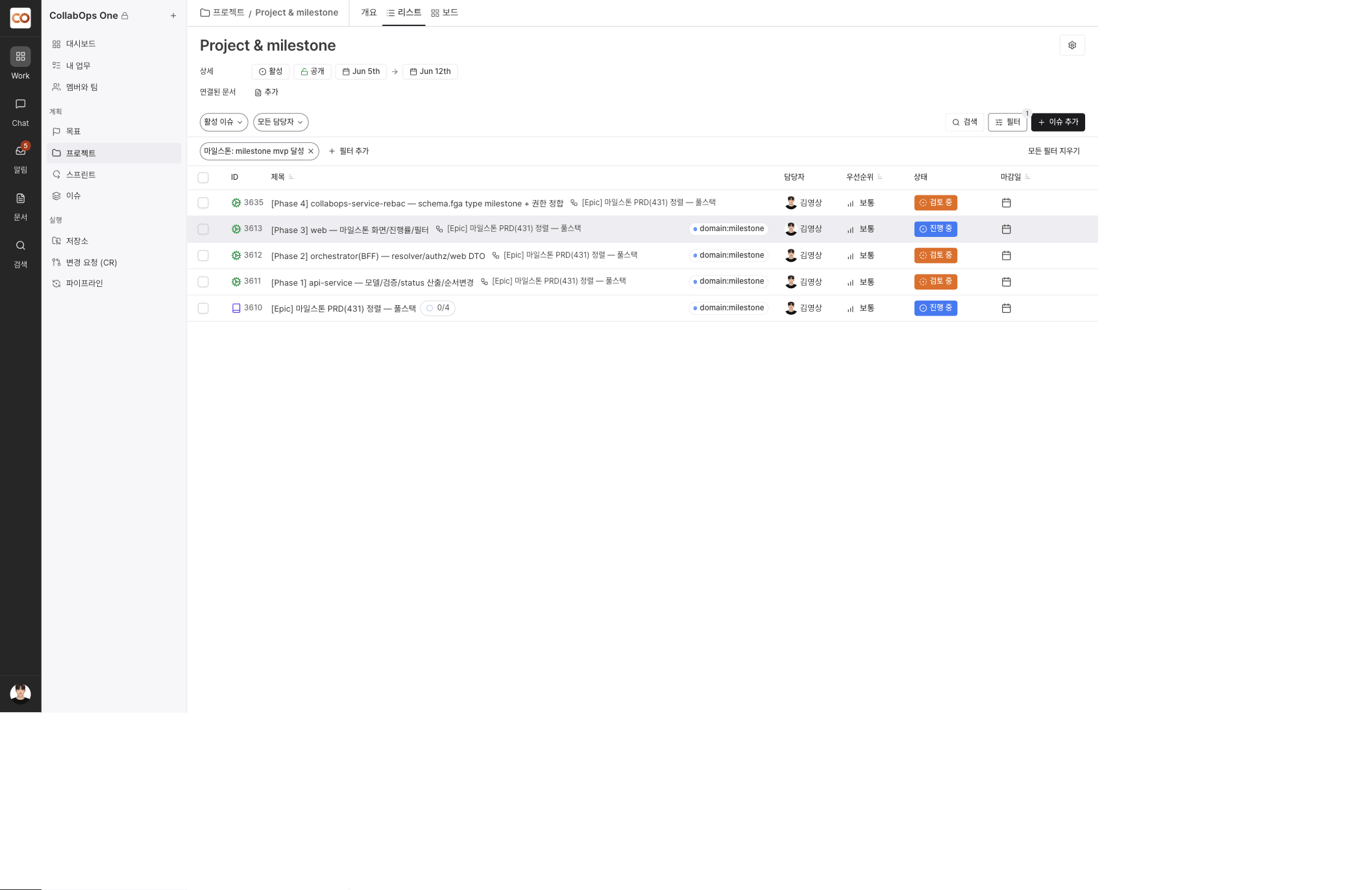
2) Add filter lets you narrow further by assignee, status, and other conditions, and Clear all filters removes every filter, including the milestone filter.
3) Add issue creates an issue that is linked to the currently selected milestone. Only issues in the same project can be linked to a milestone.
An issue can belong to at most one milestone. Linking it to a different milestone automatically removes the previous link.